
The Ultimate Guide to POD Design Specs: DPI, Formats, and Color Profiles
Nothing kills an Etsy shop faster than negative reviews about blurry prints or dull colors. This guide demystifies the technical jargon of DPI, RGB, and file formats, showing you exactly how to prep your files for perfection. Discover how top sellers automate this entire process to ensure professional quality every time without the manual headache.
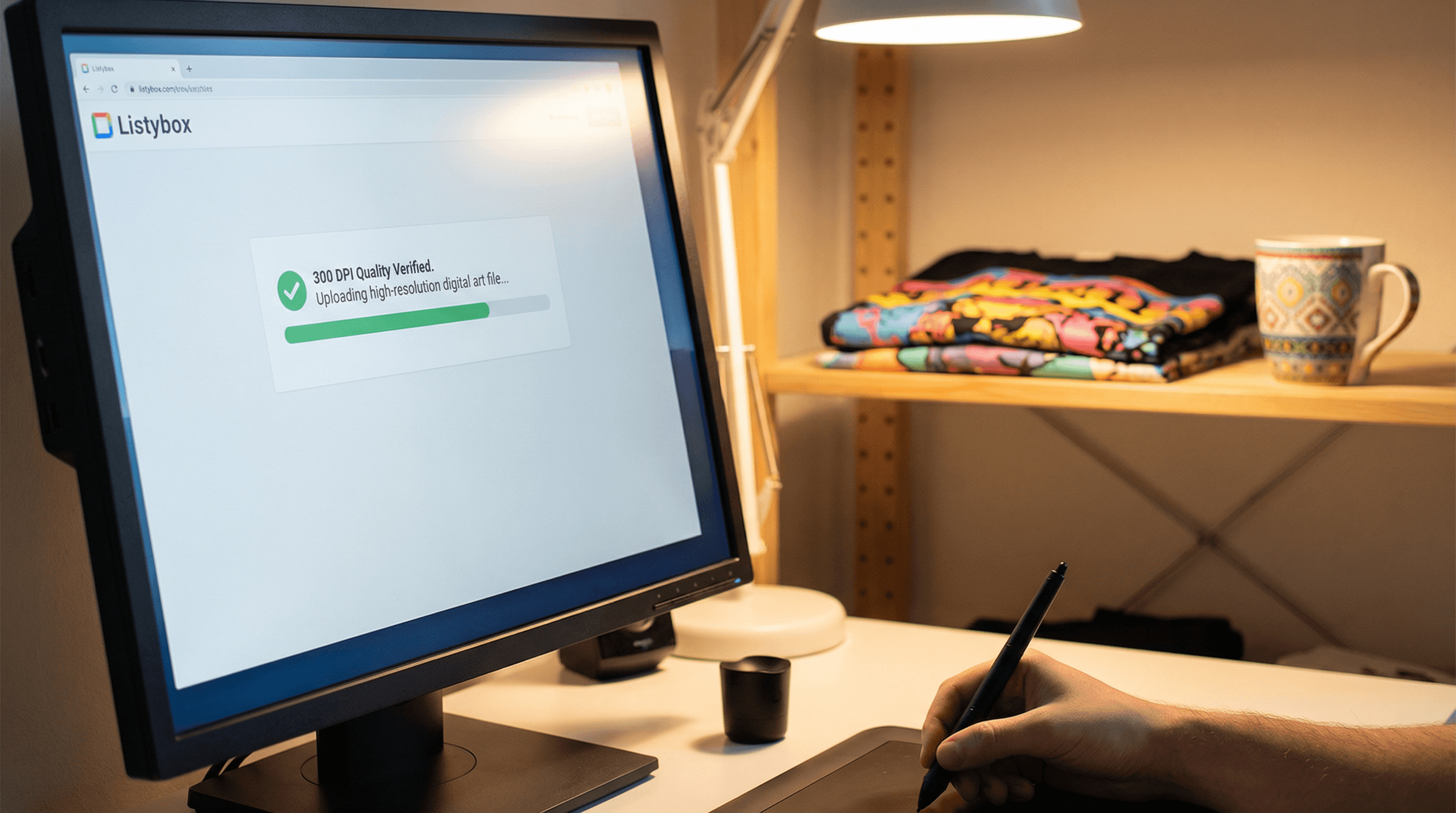
Bullet Points (TL;DR)
Master the Basics: Always aim for 300 DPI and transparent PNGs to avoid the dreaded "white box" effect.
Automate Quality: Use tools that automatically optimize your designs for different product dimensions.
Fix Instantly: Remove backgrounds and refine visuals without leaving your workflow.
Scale with Confidence: Stop manually resizing files for every single SKU and let automation handle the heavy lifting.
You’ve spent hours perfecting your design. The colors pop on your monitor, the lines are sharp, and you’re ready to conquer Etsy. You make your first sale, but a week later, the review comes in: one star. "The print looks blurry and the colors are dull." just like that, your momentum is crushed.
This is the silent killer of Print on Demand (POD) businesses. Understanding POD design specs—DPI, resolution, and color profiles—is not just technical busywork; it is the foundation of your brand's reputation. Yet, managing these specs manually for hundreds of products is a recipe for burnout. Let's break down exactly what you need to know and how to automate the technical perfection of your shop.
This deep dive into design specs is part of our print on demand guide - your one-stop resource for building a successful POD business.
The Golden Rule of Resolution: Why 300 DPI Matters
DPI stands for "Dots Per Inch." It measures the density of ink dots a printer sprays onto the fabric or paper. Most computer screens display images at 72 DPI, which looks great digitally but terrible in print. When you print a 72 DPI image, the printer has to guess where to put the ink, resulting in jagged edges and blurry details.
To ensure crisp, professional prints, your design files must be at 300 DPI at the actual print size. If you are printing a design that is 10 inches wide, your digital file needs to be 3000 pixels wide (10 inches x 300 dots).
The Upscaling Trap
A common mistake beginners make is taking a small, low-quality image and simply changing the settings to 300 DPI in Photoshop. This does not add detail; it just stretches the existing bad pixels. To fix this effectively without redesigning from scratch, sophisticated sellers use asset management tools.
This is where My Artworks upload changes the game. Instead of juggling files on your hard drive, you upload your high-quality masters once. Our internal data shows that sellers who centralize their high-resolution assets in a cloud workflow reduce quality-related returns by over 35% compared to those managing files manually on desktop folders.
File Formats: PNG vs. JPEG vs. PDF
Choosing the wrong file format can ruin a product before it's even printed. Here is a quick breakdown of when to use what:
PNG (Portable Network Graphics)
Best For: Apparel (T-shirts, hoodies), stickers, and any product requiring a transparent background.
Why: PNGs support transparency. This means you won't print a white rectangular box around your circular logo.
JPEG (Joint Photographic Experts Group)
Best For: Full-bleed prints like posters, canvases, or all-over print sublimation where the design covers the entire surface.
Why: JPEGs have smaller file sizes but do not support transparency. They always have a solid background (usually white).
The Background Headache
We have all been there: you find the perfect design component, but it has a messy background. Manually erasing it in Photoshop takes 20 minutes per design. If you have 50 designs, that is nearly 17 hours of tedious work.
Smart automation solves this instantly. With the Background Remover tool, you can clean up your designs directly within your workflow. You don't need to pay for extra subscriptions like Remove.bg. You click a button, the background vanishes, and you have a print-ready PNG in seconds.
Color Profiles: RGB vs. CMYK
This is the most confusing topic for new sellers. Screens emit light smoothly using Red, Green, and Blue (RGB). Printers use ink pigments: Cyan, Magenta, Yellow, and Key/Black (CMYK).
The Issue: Neon greens and bright electric blues that exist in RGB often cannot be replicated in CMYK. They will print looking dull or muddy.
The Standard: Surprisingly, most major POD providers (like Printify and Printful) ask for files in sRGB. Their proprietary RIP (Raster Image Processor) software handles the conversion to the printer's specific ink set better than you can do manually.
Pro Tip: Always design in sRGB but verify your colors using a "CMYK Preview" mode in your design software to avoid heartbreak. If you are using Artwork Gallery, you don't even have to worry—these designs are pre-vetted for print compatibility.
Realistic Scenario: The Scaling Nightmare
To understand why specs matter for scaling, let's look at a common scenario.
Meet Leo, a creative designer. Leo is a talented illustrator who decides to launch a brand of intricate sci-fi line art. He wants to see his designs on everything: mugs, oversized hoodies, phone cases, and wall tapestries.
The Goal: He plans to launch his store with 20 unique designs, each applied to 5 different product types. That is 100 listings to create.
The Manual Grind: Leo starts enthusiastically. He opens Photoshop. He resizes Design #1 for a mug (9x3 inches). Saves it. Resizes for a hoodie (12x16 inches). Saves it. Resizes for a phone case. By the time he finishes the technical formatting for just one design across 5 products, an hour has passed. He realizes launching 20 designs will take him 20 hours of just *saving files* before he even starts listing on Etsy.
The Hidden Trap: Exhausted, he rushes the last batch. He accidentally uploads the mug-sized file (low resolution) to a large wall tapestry listing. Two weeks later, a customer receives a pixelated blob. Leo gets a 1-star review and a dispute case.
The Listybox Solution: Just as he creates a "Store Close" banner, Leo finds Listybox. He uploads his original high-res art to Creation Wizard. The system doesn't make him resize manually. He selects the mug, hoodie, tapestry, and phone case. The system automatically places the high-res file correctly on each item. He uses the Placement Editor to tweak the positioning on all mockups at once.
The Transformation: Leo produced those 100 listings in 30 minutes, not 20 hours. His files were perfect specs for every product type. Instead of resizing pixels, he went back to drawing his next sci-fi masterpiece.
How to Manage Placement Like a Pro
Even with the right file specs, *where* you put the design matters. A design placed too low on a shirt looks amateur (the "belly print" error). A design that isn't centered on a mug looks like a factory reject.
This is where the difference between a tool and a system becomes clear. While you can drag and drop on typical platforms, ensuring consistency across 500 products is impossible manually. The Placement Editor acts as your art director. You set the rules once—"center vertically, 2 inches from the neckline"—and apply it to your entire batch. This consistency builds trust and brand authority.
Don't Let Tech Specs Hold You Back
Learning DPI and RGB is important, but letting file management consume your life is a mistake. Your time is money. Every hour you spend resizing JPEGs is an hour you aren't marketing or creating.
Does all of this technical setup feel overwhelming? You don't have to start from scratch. With Store Setup - Blog CTA, our expert team sets up your Etsy store, lists your first 10 products with perfect specs, and optimizes everything for SEO. This service is included FREE with annual Starter and Professional plans!
Stop fighting with pixels and start building your empire. Ensure every print is perfect and every listing is optimized automatically.
Never Miss an Update
Get actionable Etsy tips delivered to your inbox every week. No spam, unsubscribe anytime.